


Running out of phone storage can make a device feel slow, messy, and difficult to use. Photos may stop saving, apps may freeze, updates may fail, and simple tasks like opening WhatsApp, TikTok, Instagram, or the camera can become frustrating. The good news is that most storage problems can be fixed quickly without buying a new phone.
The key is knowing what is taking space and removing the right files first. Many people delete a few photos and still see no major difference because the real storage problem is often hidden in videos, app cache, downloads, duplicate files, old chats, offline media, and system data. Learning how to free up phone storage properly helps the phone run smoother and gives users more space for photos, apps, updates, and important files.
Why Phone Storage Fills Up So Fast
Phone storage fills up faster today because modern apps create large amounts of data in the background. Social media apps store cached images and videos, messaging apps save media files, streaming apps keep downloads, and camera apps produce high-resolution photos and videos. Even a short 4K video can take more space than hundreds of normal pictures.
Many people also forget about downloaded PDFs, screenshots, voice notes, screen recordings, old APK files, and app installation data. These files stay inside the phone even after they are no longer needed. Over time, they collect quietly and reduce available storage.
This is why users often search for how to free up phone storage when their device starts showing warning messages. The issue is not always caused by one big file. It is usually the result of many small files, duplicate media, and app data building up for months.
Check What Is Using Your Storage First
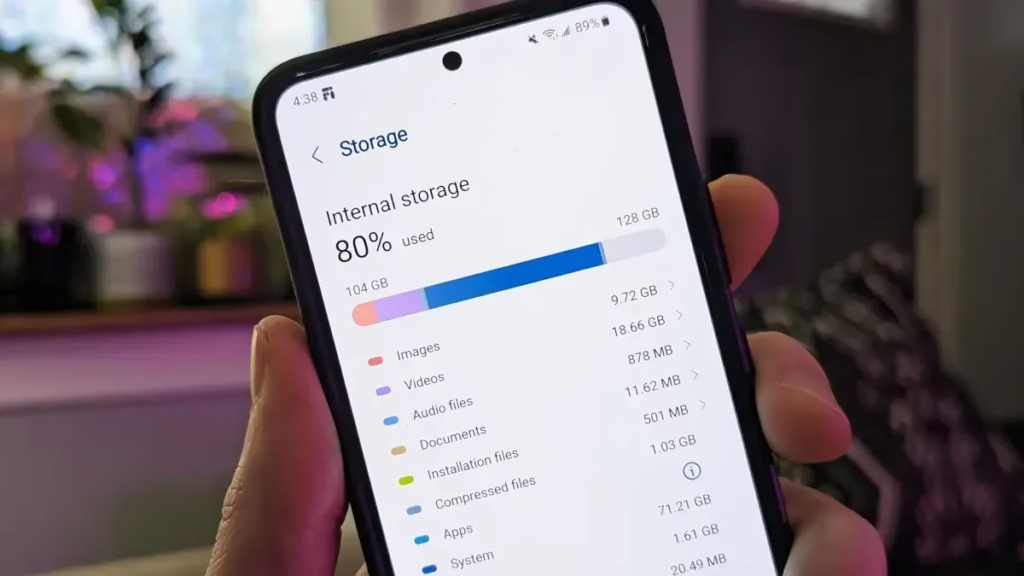
Before deleting anything, check the phone storage section. On Android, go to Settings, then Storage. On iPhone, go to Settings, General, then iPhone Storage. This screen shows how much space is being used by photos, apps, videos, system files, documents, and cached data.
This step is important because every phone has a different storage problem. One person may have 40 GB of videos, while another may have WhatsApp taking 20 GB. Someone else may have large games, offline Netflix downloads, or thousands of screenshots.
Once users know what is taking the most space, they can clean the phone faster. This also helps avoid deleting useful files while ignoring the real problem.
Delete Large Videos First
Videos usually take the most storage on a phone. If someone wants a quick result, videos should be checked before photos. Camera videos, screen recordings, downloaded reels, TikTok drafts, and WhatsApp videos can use several gigabytes.
Start by opening the gallery and sorting media by size if the phone allows it. Delete old videos that are no longer needed. Birthday clips, duplicated event videos, blurry recordings, and long screen recordings are common storage problems.
For local users in areas like Lahore, Karachi, Islamabad, Multan, Faisalabad, Rawalpindi, or nearby cities, phone storage issues often become urgent before travel, weddings, business meetings, or family events. Cleaning large videos first gives quick space before capturing new memories.
Remove Duplicate Photos And Screenshots
Photos may not take as much space as videos, but thousands of them can still fill storage. Screenshots are one of the biggest hidden problems. Many people take screenshots of payment receipts, chats, product images, maps, online orders, or social media posts and never delete them.
Go to the screenshot folder and remove images that are no longer useful. Then check duplicate photos, blurry photos, and burst shots. Many phones also have a “duplicates” or “similar photos” feature that helps find repeated images.
This simple step can clear a large amount of space without affecting important memories. It also makes the gallery cleaner and easier to search.
Clear App Cache Safely
App cache is temporary data saved by apps to load content faster. Apps like Facebook, Instagram, TikTok, YouTube, Snapchat, Chrome, WhatsApp, and food delivery apps can build large cache files. Clearing cache does not usually delete login details or personal files, but it can remove temporary stored data.
On Android, go to Settings, Apps, select an app, then Storage, and tap Clear Cache. Start with social media apps, browsers, shopping apps, and streaming apps. These apps often store the most temporary data.
On iPhone, cache clearing is more limited. Users may need to remove and reinstall certain apps or use the app’s own settings to clear downloaded data. Safari cache can be cleared from Settings, Safari, then Clear History and Website Data.
Clearing cache is one of the fastest answers to how to free up phone storage because it can remove hidden files without deleting personal photos or documents.
Clean WhatsApp Storage
WhatsApp is one of the biggest storage users for many people. Family groups, business groups, school groups, and community chats often send videos, images, voice notes, PDFs, and forwarded content daily. These files stay on the phone unless deleted.
Open WhatsApp, go to Settings, then Storage and Data, then Manage Storage. Here users can see large files, frequently forwarded files, and chats using the most space. Delete old videos, repeated forwards, unnecessary voice notes, and large documents.
For business users, freelancers, students, and shop owners, WhatsApp storage can become a serious issue because important client files mix with unnecessary media. Cleaning WhatsApp carefully can free up phone storage quickly while keeping important chats safe.
Remove Unused Apps
Unused apps can take a lot of storage, especially games, editing apps, shopping apps, learning apps, and delivery apps. Some apps also keep extra data even when they are rarely opened.
Go through the app list and remove apps that have not been used in months. If an app is easy to download again, it does not need to stay on the phone all the time. Games and video editing apps should be checked first because they often take several gigabytes.
iPhone users can also use the “Offload Unused Apps” option. This removes the app but keeps its documents and data, so the app can be reinstalled later without losing everything.
Delete Old Downloads
The Downloads folder is often ignored. It may contain old PDFs, invoices, APK files, ZIP files, forms, images, videos, and documents downloaded from browsers, email, WhatsApp, or Telegram.
Open the file manager and check the Downloads folder. Delete files that are no longer needed. Pay special attention to APK installation files on Android. After an app is installed, the APK file is usually not needed anymore.
Students, office workers, and small business owners often collect many documents over time. Removing old downloads is a simple way to free space and organize the phone.
Move Photos And Videos To Cloud Storage
Cloud storage is helpful when users want to keep files but remove them from the phone. Google Photos, iCloud, OneDrive, Dropbox, and other cloud services can store photos and videos online. After backup, local copies can be removed from the device.
Before deleting anything, confirm that files are fully backed up. Open the cloud app and check backup status. Once the backup is complete, use the app’s “free up space” option if available.
This is useful for people who use their phone for work, content creation, travel, real estate, local services, online selling, or social media marketing. They can keep media safe while making room on the phone.
Use An SD Card If Your Phone Supports It
Some Android phones support microSD cards. If available, an SD card can help store photos, videos, documents, and music. It is a practical option for users who do not want to delete personal files.
Move large media files to the SD card through the file manager. Some phones also allow camera storage to be set directly to the SD card. This helps prevent internal storage from filling up again.
However, apps may still need internal storage to run properly. So even with an SD card, users should continue cleaning app cache, downloads, and old media.
Remove Offline Music, Movies, And Maps
Streaming apps can take hidden storage because users download content for offline use. YouTube, Netflix, Spotify, Apple Music, Google Maps, and podcast apps may store large files.
Open each app and check downloads. Remove watched movies, old playlists, saved podcasts, and offline maps no longer needed. These files are easy to download again when required, so they should not stay on the phone permanently.
This is especially useful before a trip, exam week, office work, or local travel when users need quick storage for new files.
Clean Browser Data
Browsers store cache, cookies, images, and site data. Chrome, Safari, Firefox, and other browsers can use significant storage over time. Clearing browser data can help recover space and improve browsing performance.
On Chrome, open Settings, Privacy and Security, then Clear Browsing Data. On Safari, go to iPhone Settings, Safari, then clear history and website data.
Users should remember that clearing browser data may sign them out of some websites. Important passwords should be saved before cleaning.
Delete Old Messages And Attachments
SMS, iMessage, MMS, and messaging apps may store images, videos, stickers, GIFs, and voice notes. Over time, message attachments can use storage.
iPhone users can check iPhone Storage and review large attachments in Messages. Android users can open their messaging app or file manager to remove media attachments.
Old promotional messages, delivery updates, bank alerts, and repeated media threads can also be deleted. This keeps the phone cleaner and reduces storage pressure.
Use Built-In Cleaning Tools
Many phones include built-in cleaning tools. Android phones may have Files by Google, Device Care, Storage Manager, or a brand-specific cleaner. These tools can suggest junk files, duplicate files, large files, unused apps, and old downloads.
iPhones provide storage recommendations under iPhone Storage. Suggestions may include offloading unused apps, reviewing large attachments, and optimizing photos.
These tools are safer than random third-party cleaning apps because they are built for the phone system. They help users learn how to free up phone storage without removing important system files.
Be Careful With Third-Party Cleaner Apps
Some cleaning apps promise to remove junk files, boost speed, and fix storage problems. However, not all of them are useful. Some show too many ads, request unnecessary permissions, or delete files without clear explanation.
A good rule is to use trusted apps only. For Android, Files by Google is a safer choice for basic cleaning. For iPhone, built-in storage settings are usually enough.
Avoid giving unknown apps access to photos, contacts, messages, and files unless the app is trusted. Storage cleaning should not create privacy risks.
Restart Your Phone After Cleaning
After deleting large files, clearing cache, and removing unused apps, restart the phone. This helps the system update available storage and close background processes.
Sometimes the phone may still show old storage numbers until it refreshes. A restart can help the device recalculate free space and run smoother.
This step is simple but useful, especially after major cleanup.
How Much Storage Should Stay Free
A phone should not stay completely full. Keeping at least 10% to 20% free storage helps apps run better and allows system updates to install properly. For example, on a 64 GB phone, keeping around 6 GB to 12 GB free is helpful. On a 128 GB phone, 12 GB to 25 GB free space gives the phone more room to work.
When storage stays almost full, the phone may slow down, apps may crash, and updates may fail. Regular cleaning prevents this problem before it becomes urgent.
Best Quick Method To Free Storage In 10 Minutes
For a fast cleanup, start with the biggest storage areas. Delete large videos, clear WhatsApp storage, remove unused apps, clean downloads, and clear app cache. These steps usually recover more space than deleting random photos.
A practical 10-minute process is simple. First, check storage settings. Second, delete large videos. Third, clean WhatsApp media. Fourth, remove unused apps. Fifth, clear cache from social media apps. This gives quick results without spending hours searching through every folder.
This method works for most Android and iPhone users who need quick space for photos, updates, or new apps.
Local Phone Storage Help Near You
Many people can fix storage issues at home, but some cases need help from a local mobile repair shop or phone service expert. If the phone keeps showing full storage after cleaning, has system data taking too much space, fails to update, or becomes very slow, a technician can check the device safely.
Users may search for local terms like phone storage cleaning near me, mobile repair shop near me, iPhone storage help near me, Android storage service nearby, or phone repair in nearby areas. In cities such as Karachi, Lahore, Islamabad, Rawalpindi, Faisalabad, Multan, Peshawar, Quetta, and surrounding areas, local mobile shops can often help with backups, file transfer, SD card setup, and safe storage cleaning.
Professional help is also useful before resetting a phone. A backup should always be created before a factory reset because reset removes personal data from the device.
How To Stop Storage From Filling Again
Cleaning storage once is helpful, but building better habits keeps the phone fast for longer. Delete screenshots every week, remove watched downloads, clean WhatsApp media monthly, and move important photos to cloud storage.
Also check app downloads before installing anything new. If an app is only needed for one task, remove it after use. Keep videos organized and avoid recording long clips when short clips are enough.
Phone storage problems are easier to control with small weekly cleaning instead of waiting until the device becomes full.
Final Thoughts
Learning how to free up phone storage helps users keep their phone faster, cleaner, and easier to use. The quickest results usually come from deleting large videos, cleaning WhatsApp storage, removing unused apps, clearing cache, and moving photos or videos to cloud storage.
A full phone does not always mean a phone is old or damaged. In many cases, it simply needs proper cleaning. With the right steps, users can recover space quickly, protect important files, and prevent storage warnings from coming back again.